
Range Logic, Multiple Sensors & Threshold Windows
Learning Objective
Use AND/OR logic in two ways: test one sensor against a range, or combine conditions from two different sensors. Build stable threshold windows and smarter rules that react only when the right combination of real-world conditions is present.
Theory: Building a Comfortable Zone
The Problem with One Rule
Last week's nightlight turned On in the dark. Turning it Off again needed a second rule.
The Danger: Rapid Switching (Jitter)
If both rules switch at one value, like LDR = 50, a wobbling reading (49, 51, 50, 48, 52) is a problem. The LED flips on, off, on, off every second or two, each time a new reading crosses the line. This flicker is called Jitter. It quickly wears out a relay and the fan or heater it controls.
The fix is a gap between the ON value and the OFF value, called a Threshold Window.
Real-World Example: The Smart Incubator
Baby chicks must stay warm, but not too hot.
This 6°C gap keeps the system stable.
For Teachers
This is Hysteresis, made simple. If both rules switched at 25 °C, the relay could click on and off every few seconds and soon wear out.
The Built-In Range Logic
A single rule can make a window too. Just under the Sensor, Operator and Threshold boxes in the Loop Condition panel, tick Use Range.
Now Range Logic (AND / OR), Operator 2 and Threshold 2 switch on, so the rule tests the sensor twice.
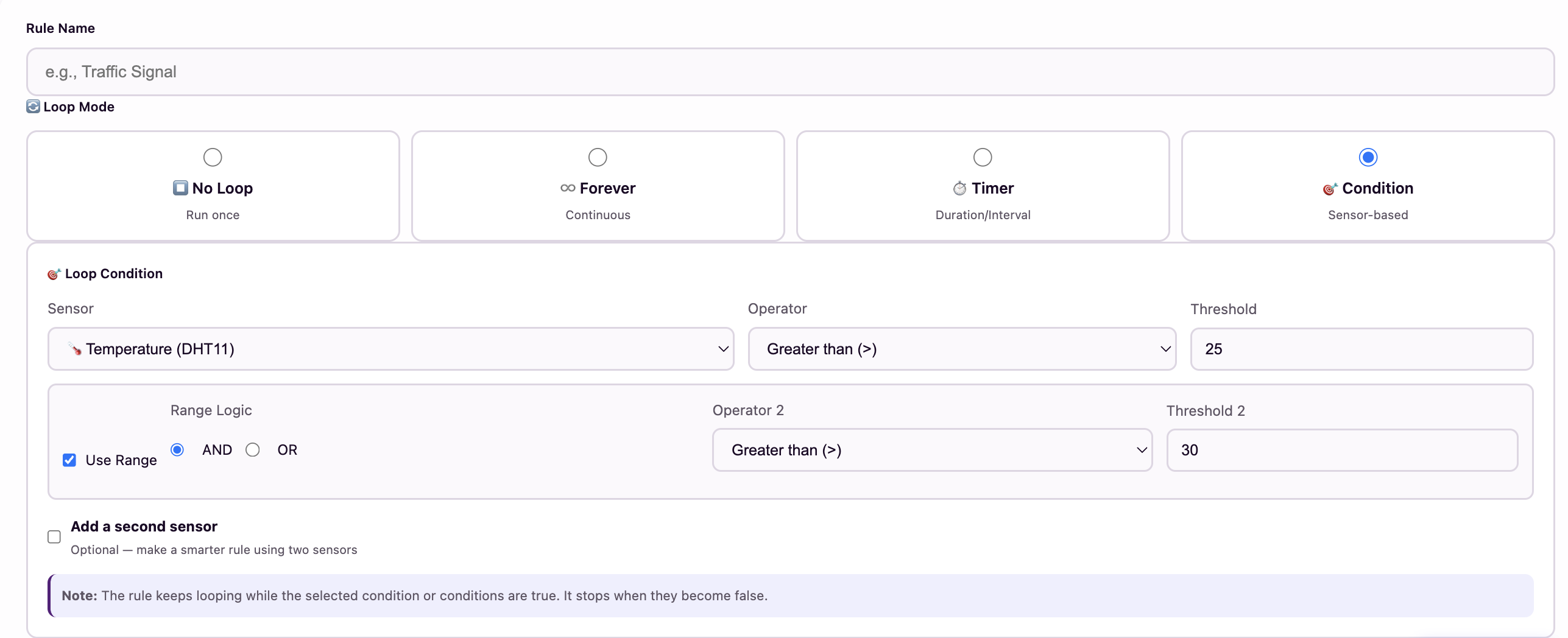
Tick Use Range (highlighted) to unlock Range Logic, Operator 2 and Threshold 2.
New: Combine Two Different Sensors
Ticking Add a second sensor adds a condition for another sensor. The two results are joined with AND or OR to decide whether the steps run.
- Set the first Sensor, Operator and Threshold.
- Tick Add a second sensor. Its panel opens.
- Under How should the two sensor conditions work together?, choose AND or OR.
- Choose the Second sensor, its Operator and its Threshold.
- For a window on the second sensor, tick Use second sensor range and set its second test.
- Add the steps and save. The rule repeats while the result is true. If it turns false mid-cycle, MakerBuddy finishes that cycle, then stops.
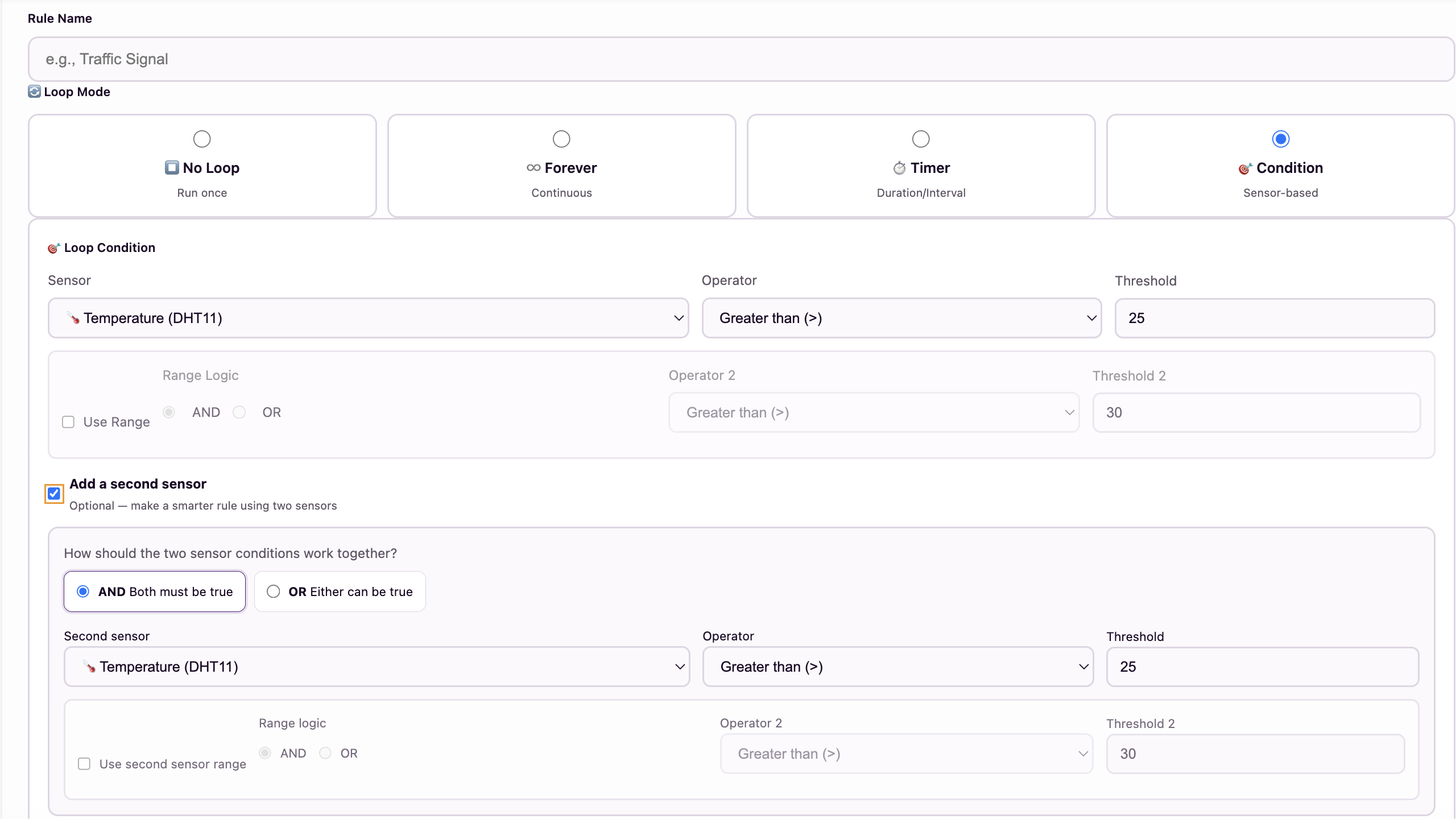
Tick Add a second sensor, then pick AND (both true) or OR (either true).
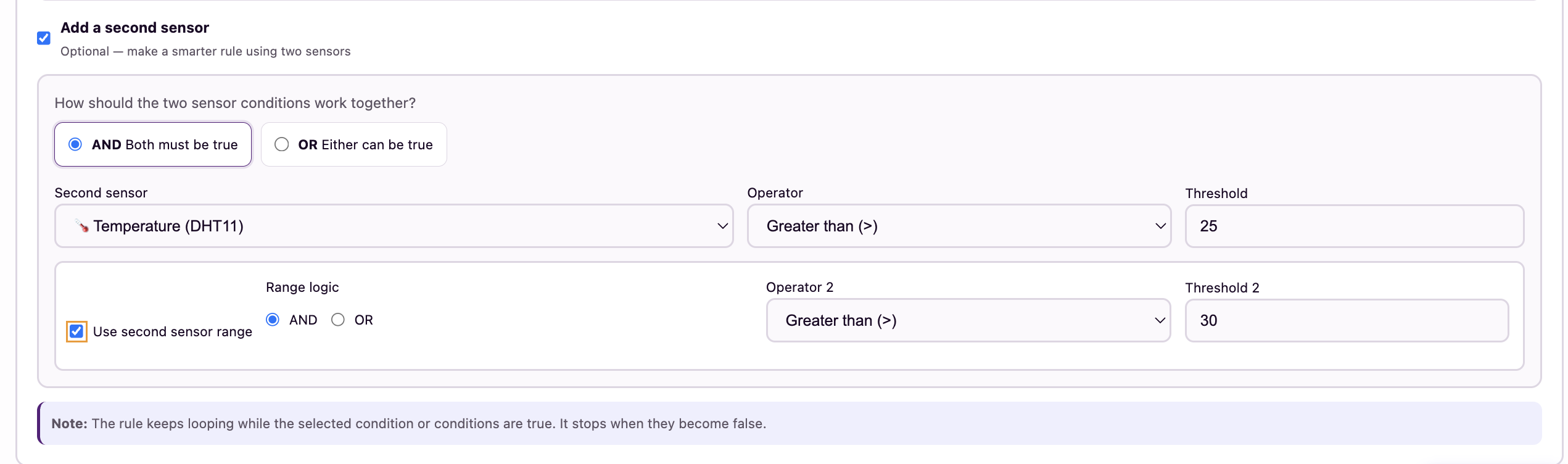
Ticking Use second sensor range gives the second sensor two tests too.
AND — both environments must agree
Every condition must be true. A security light needs dark and motion.
OR — either sensor can trigger
Either danger is enough: high gas or a dangerously high temperature.
(Temperature > 20 AND Temperature < 30) AND (Humidity > 40 AND Humidity < 60) runs only when both are in their comfort zones.AND makes a window. OR makes an alarm.
One small choice changes the meaning:
AND — inside the window
Both tests must be true: values between two numbers.
Runs only between 20°C and 30°C: a "conditions are good" light.
OR — outside the window
Either test is enough: values outside two numbers.
Runs when too cold or too hot: a "something is wrong" alarm.
So Which Should You Use?
It depends on how many different actions you need. One rule has one step list.
| You want to… | Build it as… | Why |
|---|---|---|
| Do one thing while a value is in a band | One rule, Use Range + AND | One action needs only one rule. |
| Do one thing when a value leaves a safe band | One rule, Use Range + OR | One alarm covers too low and too high. |
| Do different things at each end (heat vs. cool) | Two separate rules | Two actions need two step lists. |
| React to two different sensors | One rule, Add a second sensor + AND/OR | Both results drive the same steps. |
For Teachers
This is students' first real boolean logic (true/false logic). Act it out: have students stand up only when both statements are true, then when either is. Watch for > 30 AND > 20: it just means > 30.
Try It: Build Range and Two-Sensor Rules
Interactive demo · no kit needed
Play with a pretend MakerBuddy board and its web page, right here.
Follow the steps one at a time. Got the kit? You can switch to the real board inside.
Activity: The Climate Controller
Keep the room comfortable, with the RGB LED as a signal: Red = Heater, Blue = Air Conditioner.
Step-by-Step Instructions:
- Rule 1 — Too Cold (Heater): Create a Condition rule named "TooCold". Sensor → Temperature (DHT11), Operator → <, Threshold → 22. Step 1: Action → RGB Red, Delay → 100 ms. Save.
- Rule 2 — Too Hot (AC): Create a Condition rule named "TooHot". Sensor → Temperature (DHT11), Operator → >, Threshold → 28. Step 1: Action → RGB Blue, Delay → 100 ms. Save.
- The Comfortable Zone: At 25°C both rules are false, so nothing changes.
- Test it: Read the Temperature (DHT) card (0.0 means the DHT11 is not being read). Set TooHot's threshold 1–2 °C above that reading, then cup the DHT11 in your warm hands for half a minute. The RGB turns blue. Then set TooHot's threshold back to 28, ready for Part B.
Why two rules here? Two different actions, red and blue, need two rules.
Part B — The Same Job with One Rule
A green "conditions are perfect" light needs one action, so one rule with Use Range is enough.
- Create a Condition rule named ComfortZone.
- Sensor → Temperature (DHT11), Operator → >, Threshold → 22.
- Tick the Use Range checkbox.
- Range Logic → AND, Operator 2 → <, Threshold 2 → 28.
- Step 1: Action → RGB Green, Delay → 100 ms. Save.
- Test it: between 22 and 28 the light turns green. Warm the sensor past 28. ComfortZone stops, but green stays: a stopped rule never undoes its last step. A saved TooHot rule turns it blue.
That is Temperature > 22 AND Temperature < 28: a threshold window in one rule.
Part C — A Two-Sensor Security Light
Build the Week 20 smart-home flowchart: light on only when someone is there and it is dark.
- Create a Condition rule named SecurityLight.
- First sensor → Light Level (LDR), Operator → <, Threshold → a number halfway between your covered and room readings (for example 40).
- Tick Add a second sensor. Under How should the two sensor conditions work together? choose AND (Both must be true).
- Second sensor → 🏃 Motion Sensor. The Operator switches to Equal to (==) by itself and the box below becomes Value: choose True. (No Value list on an older dashboard? Choose Equal to (==) and type 1, meaning True, as the Threshold.)
- Step 1: Action → LED On, Delay → 100 ms. Save.
- Test all four mixes of bright/dark and motion/no motion. Only dark with motion should run the rule.
Challenge: The Ultimate Nightlight
Fixing Last Week's Bug
Last week's nightlight never turned off. Fix it with two rules:
- Rule 1 (Lights Off!): Sensor → 💡 Light Level (LDR), Operator → Less than (<), Threshold → 40. Step: Action → 💡 LED On, Value → 255, Delay → 100 ms.
- Rule 2 (Morning!): Sensor → 💡 Light Level (LDR), Operator → Greater than (>), Threshold → 60. Step: Action → 💡 LED Off, Delay → 100 ms.
Tip: still flickering? The reading is wobbling across one of your two numbers, so widen the gap between them.
Temperature < 18 first and Temperature > 30 second. Steps: 🔊 Buzzer On with Delay 200, then 🔇 Buzzer Off with Delay 800, so it always ends quiet. (Beeps in a normal room? 0.0 on the Temperature (DHT) card means the DHT11 isn't being read.) Why would this never work with AND? Tell a partner.Coming Up Next Week:
Week 28: Smart Safety Systems: MQ-2 Gas Alerts
Learning Support
Use this quick guide to help every learner understand, practice and explain Range Logic, Multiple Sensors & Threshold Windows.
For students
Try it in three steps
- Say it: explain the main idea in one simple sentence.
- Show it: Build a temperature comfort range and a motion-plus-darkness security light.
- Stretch it: Fix last week's nightlight with an ON rule below 40 and an OFF rule above 60, then build a one-rule OR alarm for too cold or too hot.
Checkpoint: What was your input, what decision or process happened, and what was the output?
For teachers & parents
Coach without taking over
- Before: ask the learner to predict what will happen and why.
- During: use prompts such as “What changed?” and “What could you test next?” instead of giving the answer.
- After: ask for a 30-second explanation, one piece of evidence and one improvement.
Look for: safe handling, correct vocabulary, a result the learner can demonstrate, and an explanation in their own words.
Did you get it?
Three quick questions. Pick an answer to see whether it is right, and why.
1What is jitter, and what causes it?
2What does a threshold window (a gap between the on and off values) do?
3A rule should run when the room is dark AND motion is detected. When does it run?