
Continuous Processing: Forever Loops
Learning Objective
Understand infinite loops. Use the Forever mode to build repeating patterns, learn how a running rule locks the output it controls, and discover what happens when two rules fight over the same component.
Theory: The Loop That Never Ends
What Is a Forever Loop?
Last week's No Loop rule ran its steps once and stopped.
A Forever rule jumps straight back to step 1 the instant the last step's delay finishes. No pause, no gap. Programmers call this an infinite loop.
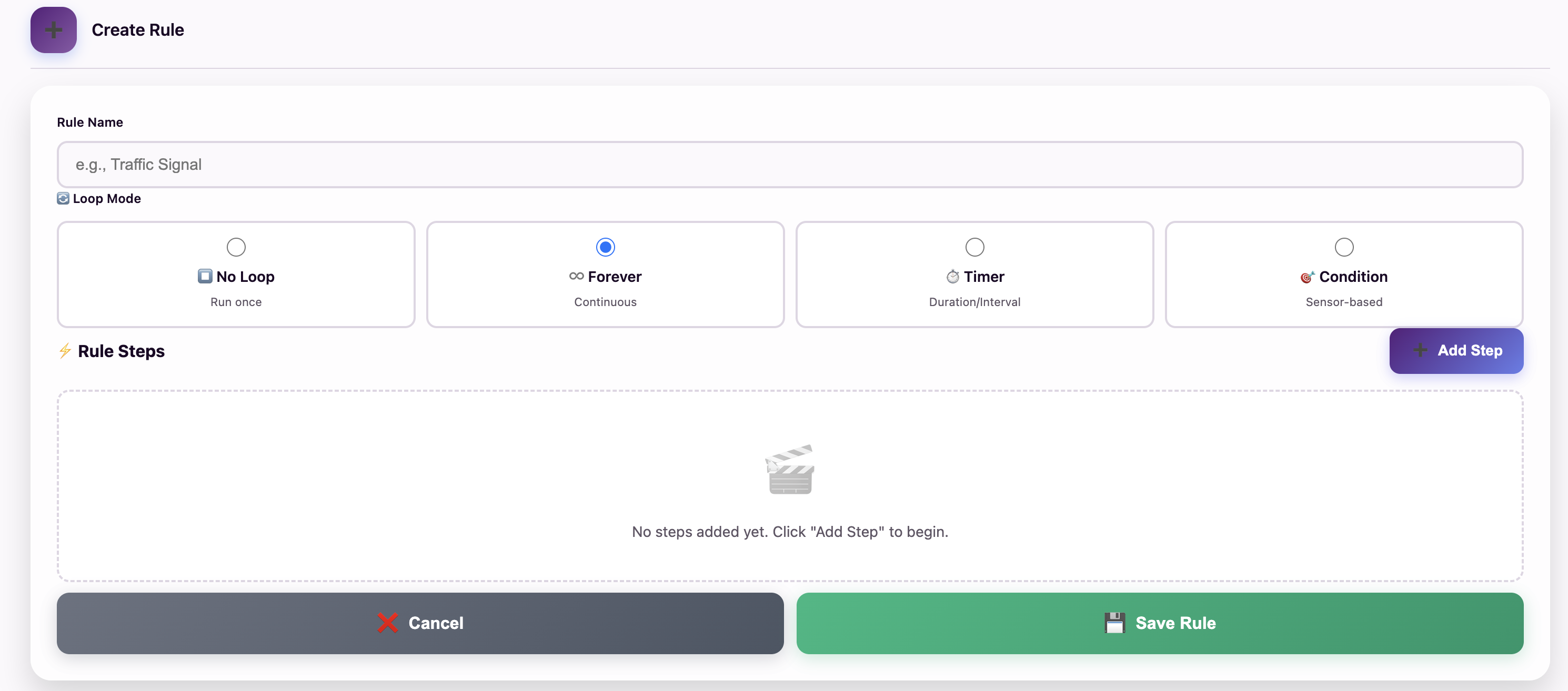
Pick Forever to restart the steps as soon as they finish.
Your heartbeat is a forever loop: beat, pause, beat, never stopping.
Forever vs. No Loop vs. Timer
The modes differ in what happens after the last step:
| Mode | After the last step it… | Result |
|---|---|---|
| ⏹️ No Loop | …stops. | Runs once. |
| ♾️ Forever | …restarts immediately. | Runs non-stop, no gap. |
| ⏱️ Timer | …waits for your interval, then restarts. | Runs on a schedule (Week 25). |
Making Patterns, Not Just States
A Forever rule loops over all its steps, so it can make a pattern. Switch the LED on, then off, and you get a blinker. Show three RGB colors in turn and you get an animation.
Remember: the delay belongs to the step above it. The 500 ms on step 1 is how long the light stays on.
The Locked Output
A Forever rule never finishes, so it is always in charge: it locks the part it drives. On the dashboard, the LED card shows a warning, and its On/Off switch stops working. Even a command sent another way would be undone the next time the rule runs that step.
That is on purpose: a safety siren should not be easy to switch off from a web page. To get control back, press ⏹️ Stop or 🗑️ Delete on the rule's row in the Rule Engine table.
Stops the rule and leaves every part exactly as it was. It stays saved and stays stopped, even after a restart. ▶️ Start runs it again.
Removes it from the board and frees one of your 10 rule slots.
Only the Parts the Rule Uses Are Locked
A running rule locks only the parts named in any of its steps. While a Forever rule blinks the LED, you can still move the servo with its dashboard slider or run a buzzer rule. So rules can run side by side if each owns different parts.
Where Forever Sits in the Priority Order
Recall the priority order from Week 21:
Forever beats No Loop, but a Condition or Timer rule can take a part from Forever whenever it needs it. This matters in Term 4, when projects run four or five rules at once.
For Teachers
Let students find the lock themselves: ask them to switch the beacon off from the dashboard. Then ask, "Bug or feature?" Fire alarms and aircraft warning lights lock on purpose too.
Real-World Applications
Forever loops are all around you:
Sirens blast non-stop until a person resets them by hand.
Lighthouses and aircraft warning lights flash all night.
Shop-window color cycles and status lights that fade in and out.
Try It: Build a Forever Beacon
Interactive demo · no kit needed
Play with a pretend MakerBuddy board and its web page, right here.
Follow the steps one at a time. Got the kit? You can switch to the real board inside.
Activity: The Persistent Beacon
Build a light that refuses to turn off, then make it flash.
Part A — The Light That Won't Die
- Open the Rule Engine and add a new rule named PersistentLight.
- Loop Mode: choose ♾️ Forever.
- Step 1: Action → LED On, Value → 255, Delay → 100.
- Save the rule. The LED turns on.
- The test: on the Dashboard tab, try the LED card's On/Off switch. Can you turn the LED off? 👀
What happened? The LED card says "This control is used by Rule Engine. Manual control is overridden." The switch won't move, because the Forever rule has locked the LED. Press ⏹️ (Stop Rule) on the PersistentLight row in the Rule Engine tab. The badge turns from ▶️ Running to ⏸️ Stopped and the warning goes. The LED stays on, but now its switch works.
Part B — Turn It Into a Beacon
- Edit your PersistentLight rule (or create a new one called Beacon).
- Step 1: Action → LED On, Value → 255, Delay → 500.
- Add Step 2: Action → LED Off, Delay → 500.
- Press Update Rule (or Save Rule for a new Beacon rule). The LED blinks once per second, over and over.
- Experiment: change both delays to 100. What happens to the blink speed? Now try 2000.
Remember: a Delay is a whole number from 0 to 3,600,000 ms (one hour). Use 100 ms or more so you can see the blink. If Save won't work, fill in every Delay box.
Challenge: The Dual Rule Clash
What Happens When Rules Fight?
What if two Forever rules give one part opposite orders? Both have the same priority, so neither outranks the other. Let's find out.
- Create a Forever rule named BuzzOn: Action → Buzzer On, Delay → 100. Save it.
- Create a second Forever rule named BuzzOff: Action → Buzzer Off, Delay → 100. Save it.
- Listen and write down exactly what you hear.
Observation: does the buzzer stay on, stay off, or stutter? Is it the same every time?
Think about it: priority only settles fights between different modes. Same-priority rules take turns, so the output flickers and is unreliable. Engineers call this a race condition.
The lesson: one component, one rule. For two behaviors, use two steps in one rule.
Key Takeaways
✓ Forever = infinite loop
After the last step it restarts immediately, with no gap.
✓ Multiple steps make patterns
On/off steps with delays make blinkers, chirps and color animations.
✓ A running rule locks its output
Dashboard control returns only after you Stop or Delete the rule.
✓ One component, one rule
Two same-priority rules on one output cause a race condition.
Coming Up Next Week:
Week 24: Term 3 Assessment — The Component Mixer — show what you can build with this term's skills.
Learning Support
Use this quick guide to help every learner understand, practice and explain Continuous Processing: Forever Loops.
For students
Try it in three steps
- Say it: explain the main idea in one simple sentence.
- Show it: Build the Persistent Beacon, then turn it into a two-step blinker.
- Stretch it: The Dual Rule Clash: watch two same-priority rules fight, then rebuild it correctly as one rule.
Checkpoint: What was your input, what decision or process happened, and what was the output?
For teachers & parents
Coach without taking over
- Before: ask the learner to predict what will happen and why.
- During: use prompts such as “What changed?” and “What could you test next?” instead of giving the answer.
- After: ask for a 30-second explanation, one piece of evidence and one improvement.
Look for: safe handling, correct vocabulary, a result the learner can demonstrate, and an explanation in their own words.
Did you get it?
Three quick questions. Pick an answer to see whether it is right, and why.
1What does a Forever rule do after its last step finishes?
2While a Forever rule runs, what happens to the dashboard switch for the part it controls?
3What goes wrong if two Forever rules give one buzzer opposite orders?