
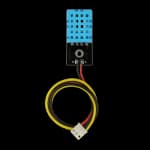
DHT11
Temperature 0–50°C · Humidity 20–90%
Developer documentation
Set up MakerBuddy, connect a dashboard, use the current REST and WebSocket APIs, build automation sequences, calibrate sensors and update ESP32 firmware.
This reference follows the current MakerBuddy_dev source: ESP32 firmware 2.3, WebApp 2.5, Chrome extension 2.5, and native mobile app 1.5.0. MakerBuddy is local-first: the ESP32 owns hardware state, automation and saved device settings, while the browser and mobile dashboards are control and visualization clients on the same local network.
| Reference item | Value |
|---|---|
| Firmware platform | ESP32 Arduino framework |
| REST base | http://{DEVICE_HOST}/api |
| WebSocket | ws://{DEVICE_HOST}/ws |
| Device port | 80 |
| Provisioning address | http://192.168.4.1 |
| Source repository | github.com/MakerBuddy/MakerBuddy-V1.0 |
DEVICE_HOST can be the board's IPv4 address or its configured <device-name>.local mDNS name. The ESP32 supports 2.4 GHz Wi-Fi. Device traffic uses unencrypted HTTP and WebSocket connections, so use MakerBuddy only on a trusted local network.
MakerBuddy_XXXX setup network. The provisioning password in firmware 2.3 is 12345678.http://192.168.4.1, choose or enter a 2.4 GHz Wi-Fi network, and set an optional device name.Device names are lowercased, limited to 32 characters, and normalized for mDNS. Holding the onboard button for 10 seconds clears the saved Wi-Fi SSID and password, restores the LCD's default mode, and restarts into provisioning. It does not erase every other saved setting. If a saved network cannot be reached, firmware retries in three connection batches and then turns Wi-Fi off; it does not automatically start the setup hotspot.
| Client | Connection and saved state |
|---|---|
| Hosted/static WebApp | Direct WebSocket connection; saves theme and card settings in browser localStorage; does not save the device host |
| Chrome extension | Requests access to the selected local device origin; saves the last host in chrome.storage.local |
| Native iOS/Android app | Direct WebSocket connection with local-network permission; saves the last host and appearance preference locally |
All three clients support ten live input values, six actuator groups, potentiometer mapping, soil calibration, firmware checks/OTA, and sequence management. The WebApp intentionally directs Google Chrome users to the extension; Firefox, Safari, or Edge can use the hosted WebApp directly.
Component reference
Identify each supported module before connecting it, then use the surrounding pin maps and API guidance as you build.
Temperature 0–50°C · Humidity 20–90%
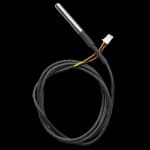
Waterproof temperature probe · −55 to 125°C
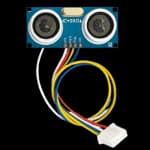
Ultrasonic distance sensor · 2–400 cm
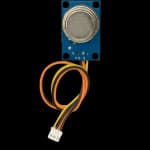
Gas and smoke sensing · Analog output
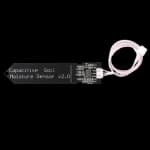
Capacitive sensing · Analog output
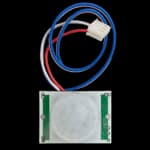
Infrared motion detection · Digital output
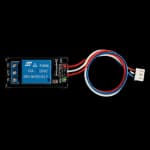
5 V relay module · Isolated switching
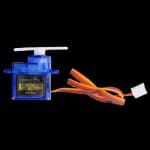
Position control · 0–180°
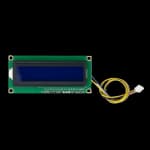
16 × 2 character display · I2C interface
REST is useful for diagnostics and integrations. The dashboards normally use WebSocket. POST endpoints read form/body parameters, not JSON request bodies.
curl "http://makerbuddy-01.local/api/sensors"

curl -X POST "http://makerbuddy-01.local/api/led" \
  -H "Content-Type: application/x-www-form-urlencoded" \
--data "state=true&pwm=200&blink=false"| Method and path | Parameters or response | Purpose | ||||
|---|---|---|---|---|---|---|
GET /api/sensors | Compact sensor and actuator JSON | Current device snapshot | ||||
POST /api/led | state; optional pwm, blink | LED on/off, 0–255 brightness and blinking | ||||
POST /api/rgb | r, g, b | RGB channels, each 0–255 | ||||
POST /api/buzzer | state | true produces one 500 ms pulse | ||||
POST /api/relay | state | Immediate relay switching | ||||
POST /api/servo | position | Servo angle, constrained to 0–180° | ||||
POST /api/lcd | mode; custom mode also uses text1, text2 | Default rotation or custom 16-column lines | ||||
GET /api/sequences | Expanded {sequences:[...]} | Automation sequence snapshot | ||||
POST /api/sequences | `action=add | delete | start | stop | toggle` and action fields | Sequence management |
POST /api/potmapping | `mode=none | led | rgb | servo` | Physical potentiometer mapping | |
GET /api/device | {dn,fv,ip,mc,up,fh,sd,sw} | Device identity and calibration | ||||
GET /api/firmware | {fv,oi,op} | Firmware version and OTA status | ||||
POST /api/ota/update | url | Queue an OTA firmware download |
There is no /api/rules endpoint in firmware 2.3. Unknown non-OPTIONS routes return a JSON 404 response. CORS currently permits all origins and private-network access.
GET /api/sensors returns compact keys and does not include a message discriminator:
{
  "te": 25.5,
  "hu": 65,
  "d8": 24.8,
  "li": 75,
  "po": 50,
  "ga": 15,
  "sm": 45,
  "sr": 2034,
  "di": 123.5,
  "md": false,
  "bp": false,
  "ls": true,
  "lp": 200,
  "lb": false,
  "r": [255, 0, 128],
  "rs": false,
  "sp": 90,
  "lm": 0,
  "fh": 234567,
  "pm": 0,
  "pv": 0
}| Key | Meaning | Key | Meaning |
|---|---|---|---|
te | DHT11 temperature, °C | hu | DHT11 relative humidity |
d8 | DS18B20 temperature, °C | li | Light level, 0–100 |
po | Potentiometer, 0–100 | ga | MQ-2 mapped value, 0–100 |
sm | Calibrated soil moisture, 0–100 | sr | Raw soil ADC, 0–4095 |
di | Distance in centimetres | md | Motion state |
bp | Button pressed state | ls | Single LED state |
lp | LED PWM, 0–255 | lb | LED blinking state |
r | RGB array [r,g,b] | rs | Relay state |
sp | Servo angle | lm | LCD mode: 0 default, 1 custom |
fh | Free heap | pm | Pot mapping: 0 none, 1 LED, 2 RGB, 3 servo |
pv | Current mapped output |
MQ-2 and soil values are educational measurements, not certified safety readings. DHT or DS18B20 read failures are reported as 0.0. Invalid ultrasonic measurements retain the last valid 2–500 cm reading; the initial fallback is 999 cm.
{
  "dn": "makerbuddy-01",
  "fv": "2.3",
  "ip": "192.168.1.100",
  "mc": "AA:BB:CC:DD:EE:FF",
  "up": 3600,
  "fh": 234567,
  "sd": 3000,
  "sw": 1200
}
dn is empty when no device name is configured. up is seconds since boot; sd and sw are the saved dry and wet soil calibration readings.
POST /api/rgb        r=255&g=0&b=128
POST /api/relay      state=true
POST /api/servo      position=90
POST /api/buzzer     state=true
POST /api/lcd        mode=custom&text1=Temp%3A%20%7Btemp%7D&text2=MakerBuddy
POST /api/potmapping mode=servo
Relay switching is immediate. Older clients may send onDelay/offDelay or compact od/fd fields, but firmware 2.3 ignores them.
Custom LCD lines support {temp}, {humidity}, {ds18b20}, {light}, {gas}, {soil}, {distance}, {pot}, {motion}, and {button}. Each rendered line must fit the physical 16-column display. A template can become invalid later if a substituted sensor value grows wider.
Connect to ws://{DEVICE_HOST}/ws for the normal real-time interface. Frames must be final, unfragmented text messages no larger than 1024 bytes.
On connection the device sends identity (i), firmware status (f), and the full sequence snapshot (q). Telemetry (s) is broadcast at most once every two seconds.
{ "m": "i", "dn": "makerbuddy-01", "fv": "2.3", "ip": "192.168.1.100", "mc": "AA:BB:CC:DD:EE:FF", "up": 3600, "fh": 234567, "sd": 3000, "sw": 1200 }{ "m": "s", "te": 24.5, "hu": 58.2, "d8": 24.1, "li": 65, "po": 42, "ga": 8, "sm": 45, "sr": 2010, "di": 42.1, "md": 0, "bp": 0, "ls": 1, "lp": 255, "lb": 0, "r": [0, 0, 0], "rs": 0, "sp": 90, "lm": 0, "fh": 230000, "pm": 0, "pv": 0 }| Target | Payload | Meaning |
|---|---|---|
| LED | {"m":"L","s":1,"p":255,"b":0} | State, PWM and blink |
| RGB | {"m":"R","r":255,"g":0,"b":128} | Red, green and blue intensities |
| Relay | {"m":"Y","s":1} | Immediate state |
| Servo | {"m":"V","p":90} | Angle, 0–180° |
| Buzzer | {"m":"Z","s":1} | One 500 ms pulse |
| LCD | {"m":"D","md":1,"t1":"Temp: {temp}","t2":"MakerBuddy"} | 0 default or 1 custom |
| Pot mapping | {"m":"P","md":3} | 0 none, 1 LED, 2 RGB, 3 servo |
| Soil calibration | {"m":"M","d":3000,"w":1200} | Optional dry/wet raw ADC values |
| OTA | {"m":"O","u":"http://host/firmware.bin"} | Queue firmware URL |
| Sequences | {"m":"X","a":0..4,"i":0,"s":{...}} | Add, delete, start, stop or toggle |
A successful soil-calibration command receives {"m":"m","d":3000,"w":1200}. Sequence changes broadcast an updated q snapshot to all connected clients.
The rule engine runs on the ESP32 and stores up to 10 sequences, each containing up to 10 steps. Sequence names allow 20 visible characters. Each step executes an action, then waits for its non-negative delay in milliseconds before advancing.
| Priority | Loop mode | Behavior |
|---|---|---|
| 1 | condition | Monitors one or two sensor expressions; starts after a 300 ms stable match and finishes the current cycle when the condition becomes false |
| 2 | timer | Runs a cycle, waits the configured interval after completion, then restarts |
| 3 | forever | Repeats immediately after the final step delay |
| 4 | none | Runs once and stops |
Conditions support >, <, >=, <=, and approximate numeric equality. A sensor can use one comparison or a two-comparison range joined by AND/OR. A rule can also add a second sensor expression and combine both complete expressions with AND/OR—for example, (distance < 20) AND (soil < 20).
{
  "m": "X",
  "a": 0,
  "s": {
    "e": 1,
    "n": "Plant alert",
    "lm": "condition",
    "as": 1,
    "lr": "soil",
    "lo": "<",
    "lt": 25,
    "rg": 0,
    "c2": 1,
    "lr2": "temperature",
    "lo2": ">",
    "lt2": 30,
    "rg2": 0,
    "co": "AND",
    "st": [
      { "a": "led_on", "v": 255, "d": 1000 },
      { "a": "buzzer_on", "v": 0, "d": 500 }
    ]
  }
}
X.a is 0 add, 1 delete, 2 start, 3 stop, or 4 toggle enabled. Delete/start/stop/toggle also require sequence index i. There is no native update action; dashboard editing deletes the original sequence and adds its replacement, which can change ordering.
Active rules lock only the actuator used by their current step against lower-priority modes. A timer waiting at its interval boundary locks nothing. Condition rules monitor whenever enabled unless manually stopped; autostart controls boot-time startup for non-condition modes.
Soil calibration defaults to dry raw 3000 and wet raw 1200; saved values are constrained to 0–4095. Use the dashboard's live raw reading to capture values for the actual sensor and soil. If dry and wet are equal, calibrated moisture reports zero.
The potentiometer can control the LED PWM, RGB color wheel, servo angle, or nothing. Although a selected mode is written to device preferences, firmware intentionally resets mapping to none on every boot. Rules can temporarily make mapping targets unavailable when the same actuator is locked by automation.
The dashboards check http://app.makerbuddy.cc/firmware.json after learning the installed firmware version. If a newer release is available, they can send its binary URL to the ESP32. A dismissed release notice is suppressed locally for 24 hours for that version.
Firmware 2.3 clears the complete iot-kit settings namespace before it knows whether the OTA download will succeed. An OTA attempt erases Wi-Fi credentials, device name, sequences, soil calibration, LCD settings and potentiometer mapping. If the download fails, sensor/LCD/blink tickers are not reattached until reboot. Record settings first and keep physical access to the board before starting OTA.OTA uses an unencrypted, client-supplied URL and has no firmware signature or origin validation in the current source.
Use an ESP32 Dev Module, Arduino-ESP32 with the current pin-based LEDC API, 4 MB flash, and Serial Monitor at 115200 baud. External libraries used by the source are:
ESP32Servo is not used. The servo is driven directly through ESP32 LEDC at 50 Hz. Before uploading, confirm the board revision and serial port, preserve a known-good firmware binary, and save device settings that matter. Uploading firmware changes hardware state and should be tested on the actual board.
ws:// on port 80.0.0; check the module, port and power before treating zero as a real measurement.Build with MakerBuddy
Start with prepared hardware, see results quickly, and keep going all the way into code.